

Hey there! As a supplier of Hybrid UV Printers, I know how important it is to keep your printer's firmware up - to - date. Firmware is like the brain of your printer, and updating it can bring a bunch of benefits, like better performance, new features, and improved stability. In this blog, I'll walk you through the steps to update the firmware of a Hybrid UV Printer.
Why Update the Firmware?
Before we dive into the how - to, let's quickly talk about why you should bother updating the firmware. First off, new firmware often comes with performance enhancements. It can make your printer print faster, with better quality, and more accurately. For example, it might optimize the inkjetting process, resulting in sharper images and more consistent colors.
Secondly, firmware updates can introduce new features. Maybe there's a new printing mode that allows you to print on different types of materials more easily, or a new calibration option that improves the alignment of your prints.
Lastly, updating the firmware can fix bugs and security vulnerabilities. Just like any software, the firmware in your printer can have glitches that cause printing errors or other issues. By updating, you can keep your printer running smoothly and securely.
Step 1: Check Compatibility
The first thing you need to do is make sure the new firmware is compatible with your Hybrid UV Printer. Not all firmware updates are suitable for every model. You can usually find this information on our official website. Head over to the support section and look for the firmware download page. There, you'll see a list of available firmware versions along with the models they're compatible with.
If you're not sure which model you have, you can check the label on the printer itself or refer to the user manual. Once you've confirmed that the firmware is compatible, you're ready to move on to the next step.
Step 2: Back Up Your Data
Before you start the firmware update process, it's a good idea to back up any important data on your printer. This includes settings, saved print jobs, and any custom profiles you've created. Losing this data during the update could be a real pain, so take a few minutes to save it somewhere safe.
Most Hybrid UV Printers allow you to save these settings to an external storage device, like a USB flash drive. Just follow the instructions in the user manual to export your data. Make sure to label the drive clearly so you know what's on it.
Step 3: Download the Firmware
Now it's time to download the new firmware. Go back to the firmware download page on our website. Find the version that's compatible with your printer and click the download link. The download might take a few minutes, depending on your internet speed.
Once the download is complete, check the file to make sure it's not corrupted. You can do this by comparing the file's checksum (usually provided on the download page) with the one calculated by your computer. If the checksums match, the file is good to go.
Step 4: Prepare Your Printer
Before you install the firmware, you need to prepare your printer. First, make sure it's turned on and connected to a stable power source. You don't want the printer to lose power during the update, as this could cause serious problems.
Next, if your printer has an internal storage device, make sure there's enough space for the firmware file. You might need to delete some unnecessary files to free up space.
Also, make sure the printer is in a clean and stable environment. Avoid any vibrations or sudden movements that could disrupt the update process.
Step 5: Install the Firmware
There are a few different ways to install the firmware, depending on your printer model. The most common method is to use a USB flash drive.
- Copy the downloaded firmware file to the USB flash drive. Make sure the file is in the root directory of the drive (not in a folder).
- Insert the USB flash drive into the appropriate port on your printer.
- Navigate to the firmware update option in the printer's menu. This might be under the "Settings" or "Maintenance" section.
- Select the firmware file from the USB drive and start the installation process. The printer will display a progress bar as it installs the new firmware. This can take anywhere from a few minutes to half an hour, depending on the size of the firmware file.
Step 6: Verify the Update
Once the installation is complete, the printer will usually restart automatically. After it restarts, check to make sure the firmware has been updated successfully. You can do this by going to the printer's settings menu and looking for the firmware version number. It should match the version you just installed.
If the version number is correct, try printing a test page to make sure everything is working properly. Look for any signs of issues, like streaks, blurry images, or incorrect colors. If you notice any problems, don't panic. You can usually troubleshoot the issue by referring to the user manual or contacting our support team.
Step 7: Enjoy the Benefits
Now that your Hybrid UV Printer's firmware is up - to - date, you can start enjoying the benefits. Print some high - quality images, try out the new features, and see how much better your printer performs.
If you run into any problems during the firmware update process or have any questions about your Hybrid UV Printer, don't hesitate to reach out to our support team. We're here to help you get the most out of your printer.
Our Hybrid UV Printers
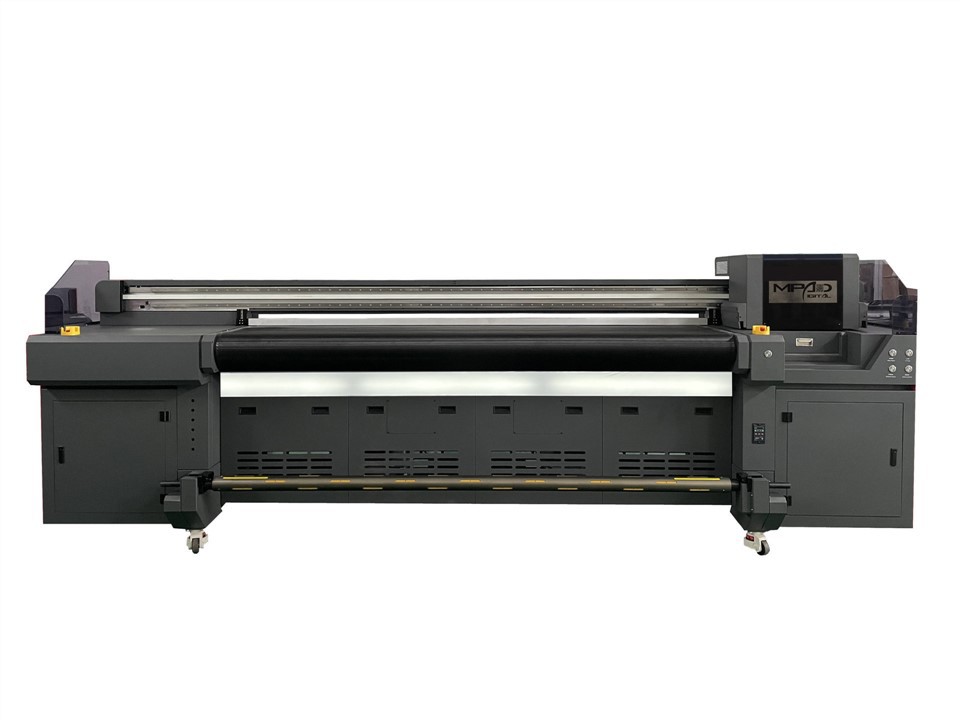
We offer a range of Hybrid UV Printers to meet different needs. Check out our UV Hybrid Roll To Roll Printer, which is perfect for printing on rolls of materials like vinyl, fabric, and paper. It's fast, efficient, and produces high - quality prints.
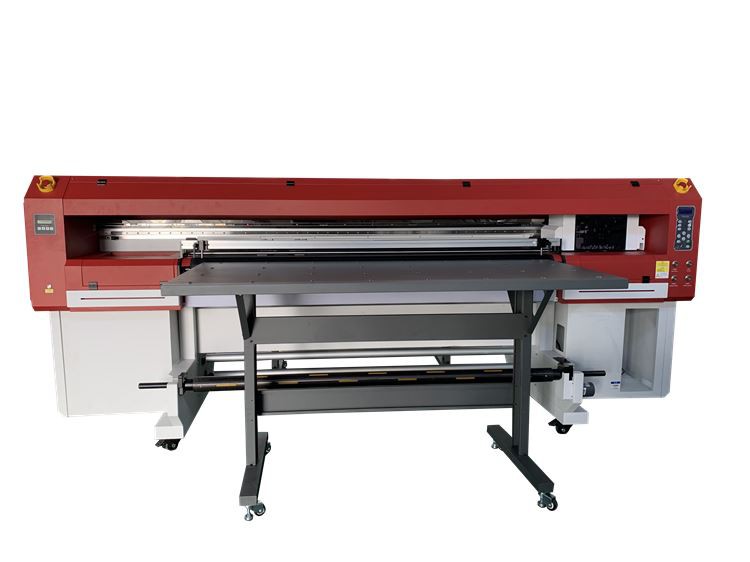
If you need a more versatile printer, our Versatile UV Hybrid Printer is a great choice. It can handle a variety of materials, including rigid and flexible substrates, and offers a wide range of printing options.
And for those looking for a printer that uses hybrid ink, our Hybrid Ink Printer is the way to go. It combines the best of both worlds, offering excellent print quality and durability.
Contact Us for Purchase
If you're interested in purchasing a Hybrid UV Printer or have any questions about our products, we'd love to hear from you. Whether you're a small business owner looking to expand your printing capabilities or a large - scale printing company in need of a reliable printer, we have the right solution for you. Just reach out to us, and our sales team will be happy to assist you with your purchase and answer any questions you might have.
References
- Hybrid UV Printer User Manuals
- Manufacturer's Technical Documentation