

As a supplier of top UV printers, I've encountered and resolved numerous common issues that users face. In this blog, I'll share some effective troubleshooting methods for these problems.
Print Quality Issues
Blurry Prints
One of the most frequent complaints is blurry prints. This can be caused by several factors. Firstly, check the printhead. Over time, printheads can become clogged with ink residue, leading to uneven ink distribution and blurry results. To clean the printhead, use a gentle cleaning solution recommended by the printer manufacturer. Follow the specific cleaning procedures provided in the user manual, as improper cleaning can damage the printhead.
Another possible cause is incorrect print settings. Ensure that the resolution is set correctly for the type of material you're printing on. For high - quality prints on smooth surfaces, a higher resolution might be required. However, if the resolution is set too high for a rough or porous material, it can also lead to blurry prints. You can refer to our High Speed UV Printer product page for more information on suitable print settings.
Streaky Prints
Streaky prints are often a sign of ink flow problems. Check the ink cartridges or ink lines for blockages. If an ink cartridge is running low, it may not be able to supply ink evenly, resulting in streaks. Replace the cartridge if necessary.
The ink viscosity can also affect print quality. In cold environments, the ink may thicken, causing streaks. You can try adjusting the temperature of the printing environment or using an ink with a lower viscosity. Additionally, make sure that the ink lines are properly connected and not kinked, as this can disrupt the ink flow.
Color Inconsistencies
Color inconsistencies can be frustrating. Start by calibrating the printer. Most modern UV printers have a built - in calibration function that helps to ensure accurate color reproduction. Follow the calibration steps in the user manual carefully.
The type of ink and the material being printed on can also impact color. Different inks may have slightly different color profiles, and some materials may absorb or reflect colors differently. Test different ink - material combinations to find the best match for your desired color output. Our Industrial Flatbed Printer is designed to work with a variety of inks and materials, providing more options for achieving consistent colors.
Mechanical and Hardware Issues
Printer Not Starting
If your UV printer won't start, first check the power supply. Make sure that the printer is properly plugged in and that the power switch is turned on. Check the circuit breaker or fuse in your electrical panel to ensure that there is no power outage or electrical problem.
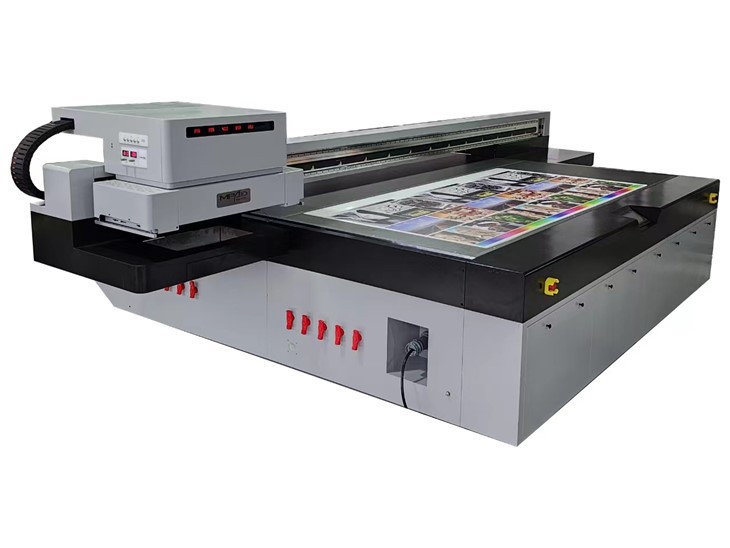
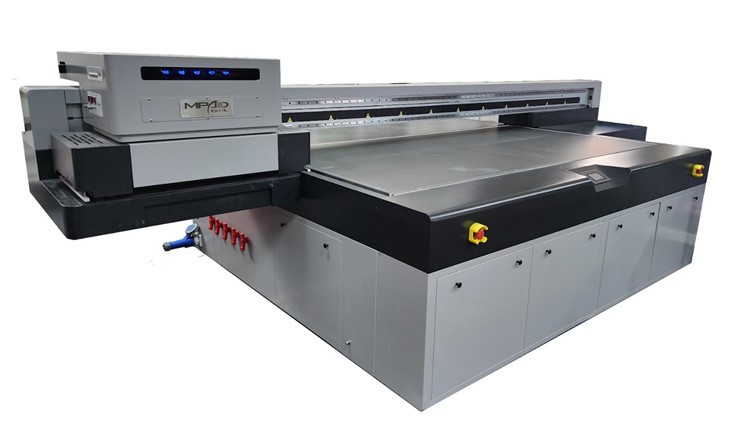
Some printers have a safety mechanism that prevents them from starting if certain conditions are not met. For example, the printer may not start if the door is open or if the printhead is not in the correct position. Check these safety features and ensure that all components are in their proper places.
Uneven Movement of the Printhead
An uneven movement of the printhead can lead to inconsistent prints. This can be caused by a dirty or damaged rail system. Clean the rails regularly using a soft cloth and a mild cleaning agent. Lubricate the rails if necessary, but be careful not to use too much lubricant, as it can attract dust and debris.
Check the belts and pulleys that drive the printhead. If they are loose or worn, they may cause the printhead to move unevenly. Tighten or replace the belts and pulleys as needed. You can find more details about the mechanical components of our Digital Flatbed Printer on the product page.
Noise During Operation
Excessive noise during printer operation can indicate a problem. It could be due to loose parts, such as screws or bolts. Inspect the printer for any loose components and tighten them.
The fans in the printer may also be making noise if they are dirty or malfunctioning. Clean the fans regularly to remove dust and debris. If the noise persists, it may be necessary to replace the fans.
Software and Connectivity Issues
Software Errors
Software errors can prevent the printer from functioning properly. Make sure that you are using the latest version of the printer software. Visit the manufacturer's website to download and install any available updates.
If you encounter error messages, refer to the error code guide in the user manual. Some errors can be resolved by simply restarting the software or the printer. If the problem persists, contact our technical support team for further assistance.
Connectivity Problems
If the printer is not connecting to your computer, check the connection cables. Make sure that the USB or Ethernet cable is properly plugged in at both ends. Try using a different cable if possible.
On the computer side, ensure that the printer drivers are installed correctly. You may need to uninstall and reinstall the drivers to fix the connectivity issue. Some printers also support wireless connectivity. If you are using wireless, check the Wi - Fi settings and make sure that the printer is connected to the correct network.
Maintenance and Preventive Measures
To avoid these common problems, regular maintenance is essential. Clean the printer regularly, including the printhead, ink lines, and rails. Follow the maintenance schedule provided in the user manual.
Store the printer in a clean and dry environment. Avoid exposing the printer to extreme temperatures and humidity, as this can damage the components.
Use high - quality inks and materials. Inferior inks may clog the printhead more easily, and low - quality materials may not produce good print results.
In conclusion, troubleshooting common problems with top UV printers requires a systematic approach. By following the steps outlined in this blog, you can identify and resolve many of the issues that you may encounter. If you have any further questions or need more in - depth support, feel free to contact us to discuss your specific needs and explore our range of UV printers. We are always ready to assist you in making the most of your printing experience.
References
- Printer user manuals provided by the manufacturer.
- Technical documentation and support resources available on the product websites.