

Hey there! As a supplier of Hybrid UV Printers, I often get asked about how to set up the network connection for these amazing machines. In this blog, I'll walk you through the whole process step by step.
First off, let's talk a bit about what a Hybrid UV Printer is. It's a really versatile piece of equipment. You can check out our UV Hybrid Printer Flatbed and Hybrid Printing Machine and Hybrid Flatbed Printers on our website to get a better idea of what they can do. These printers can handle both flat and roll - to - roll printing, making them super useful for all sorts of printing jobs, from small business signage to large - scale advertising materials.
Now, let's dive into the network connection setup. The first thing you need to do is make sure you have all the necessary hardware. You'll need an Ethernet cable or a Wi - Fi adapter, depending on how you want to connect your printer to the network. Most Hybrid UV Printers come with Ethernet ports, so if you have a wired network in your office or workshop, that's usually the easiest way to go.
If you're using an Ethernet cable, start by locating the Ethernet port on your printer. It's usually a small rectangular port, often labeled "LAN" or "Ethernet". Plug one end of the Ethernet cable into this port. Then, connect the other end of the cable to your router or network switch. Make sure the cable is securely plugged in at both ends.
Once you've made the physical connection, you need to configure the printer's network settings. On the printer's control panel, look for the "Network" or "Settings" menu. Navigate to the network setup section. Here, you'll need to select the type of connection you're using. If you're using Ethernet, it should be set to "Wired" or "Ethernet".
Next, you'll need to set the IP address for your printer. There are two ways to do this: DHCP (Dynamic Host Configuration Protocol) or static IP. DHCP is the easier option. When you select DHCP, the printer will automatically get an IP address from your router. This is great because you don't have to manually assign an IP address, and the router will take care of all the address management.
To set DHCP, go to the IP address settings in the network menu and select "DHCP". The printer will then try to connect to the network and get an IP address. You'll see a message on the control panel indicating that it's trying to obtain an address. Once it's successful, it'll display the assigned IP address.
If you prefer to use a static IP address, you'll need to know the details of your network, such as the subnet mask, default gateway, and DNS server addresses. These details are usually provided by your network administrator or your Internet Service Provider (ISP). Enter these values into the appropriate fields in the printer's network settings. Make sure you double - check the information to avoid any connection issues.
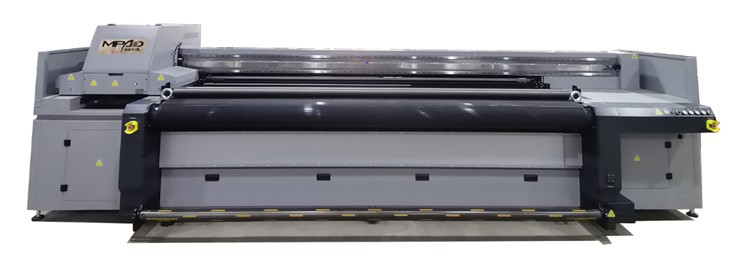
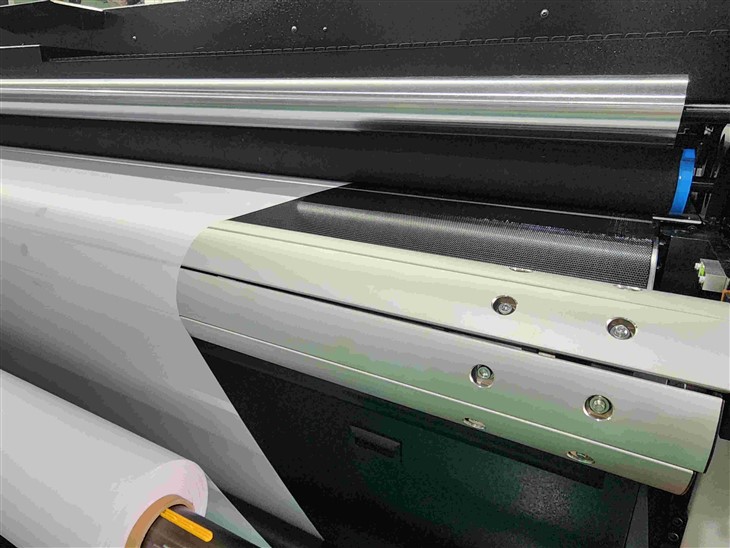
If you want to connect your printer to a Wi - Fi network, it's a bit more involved. First, make sure your printer has a Wi - Fi adapter or built - in Wi - Fi capabilities. On the printer's control panel, go to the network settings and select "Wi - Fi". The printer will then scan for available Wi - Fi networks.
Select your network from the list of available networks. You'll be prompted to enter the Wi - Fi password. Type in the password using the control panel's keypad or touchscreen. Once you've entered the password correctly, the printer will try to connect to the Wi - Fi network. It might take a few seconds or a minute for the connection to be established.
After the printer is connected to the network, you need to set it up on your computer. On a Windows computer, go to the "Control Panel" and select "Devices and Printers". Click on "Add a printer". Windows will search for available printers on the network. When it finds your Hybrid UV Printer, select it and click "Next". Follow the on - screen instructions to install the printer drivers.
On a Mac, go to the "System Preferences" and click on "Printers & Scanners". Click the "+" button to add a new printer. Select your printer from the list of available printers on the network. Mac will automatically install the necessary drivers.
Once you've installed the printer drivers on your computer, you should be able to print a test page to make sure everything is working correctly. On the printer's control panel, look for the "Test Print" or "Diagnostics" option. Select it, and the printer will print a test page with some sample text and graphics. Check the printed page to see if the colors are correct, the text is clear, and there are no streaks or smudges.
If you run into any issues during the setup process, don't worry. There are a few common problems that you can troubleshoot. If the printer can't connect to the network, first check the physical connections. Make sure the Ethernet cable is plugged in properly or that the Wi - Fi signal is strong. You can also try restarting the printer and the router. Sometimes, a simple restart can fix a lot of connection problems.
If the printer is connected to the network but you can't print from your computer, check the printer drivers. Make sure they're installed correctly and up - to - date. You can usually download the latest drivers from our website. Just go to the support section and find the driver for your specific Hybrid UV Printer model.
In conclusion, setting up the network connection for a Hybrid UV Printer isn't too difficult if you follow these steps. It might take a little time and patience, especially if you're new to network configuration, but once you've got it up and running, you'll be able to print from multiple devices on your network, which is really convenient.
If you're interested in getting a Hybrid UV Printer for your business or have any questions about the setup process, don't hesitate to reach out. We're here to help you every step of the way. Whether you're a small - scale printer or a large - scale printing company, our Hybrid UV Printers can meet your printing needs. So, if you're ready to take your printing to the next level, get in touch with us for a purchase consultation.
References:
- General knowledge of Hybrid UV Printer operation and network setup
- Manufacturer's user manuals for Hybrid UV Printers