

Hey there! As a supplier of UV Flatbed Printers, I know how crucial it is to keep your printer's print head in top - notch condition. A clean print head ensures high - quality prints, longer printer life, and fewer headaches down the line. So, let's dive into how you can clean the print head of a UV Flatbed Printer.
Why Cleaning the Print Head Matters
First off, you might be wondering why you even need to clean the print head. Well, over time, ink residue, dust, and debris can build up on the print head. This buildup can cause clogs, which lead to uneven ink distribution, streaky prints, and in some cases, complete print head failure. A dirty print head can also affect the accuracy of color reproduction, making your prints look less vibrant and professional.
Pre - Cleaning Preparations
Before you start cleaning, you need to gather a few essential tools. You'll need some lint - free cleaning cloths, distilled water, a cleaning solution specifically designed for UV inks (you can get this from your printer supplier), a syringe, and a pair of gloves to protect your hands.
It's also a good idea to power off the printer and unplug it from the electrical outlet. This is a safety measure to prevent any accidental electrical shocks. Once the printer is off, let it cool down for a while if it has been in use recently.
Step - by - Step Cleaning Process
Step 1: Access the Print Head
Open the printer's cover to access the print head. The location of the print head can vary depending on the model of your UV Flatbed Printer. Some printers have a dedicated access panel, while others require you to remove a few components to reach it. Refer to your printer's user manual if you're having trouble finding the print head.
Step 2: Remove Excess Ink
Use a lint - free cloth to gently wipe away any excess ink from the surface of the print head. Be careful not to apply too much pressure as this can damage the delicate nozzles. If there are any large clumps of ink, you can use a syringe filled with distilled water to gently flush them out.
Step 3: Prepare the Cleaning Solution
Mix the cleaning solution according to the instructions on the bottle. Usually, you'll need to dilute it with distilled water. Make sure you use distilled water because tap water can contain minerals and impurities that can cause further clogging.
Step 4: Soak the Print Head
Take a shallow container and pour the cleaning solution into it. Carefully remove the print head from the printer (again, refer to your user manual for the correct procedure). Place the print head in the container, making sure that the nozzles are submerged in the cleaning solution. Let the print head soak for about 15 - 20 minutes. This will help dissolve any stubborn ink residues and clogs.
Step 5: Flush the Nozzles
After soaking, use a syringe filled with the cleaning solution to flush the nozzles. Insert the syringe tip into the nozzle and gently push the plunger to force the cleaning solution through. Do this for each nozzle, one by one. You may need to repeat this process a few times to ensure all the clogs are removed.
Step 6: Rinse the Print Head
Once you've flushed the nozzles, remove the print head from the cleaning solution and rinse it thoroughly with distilled water. This will remove any remaining cleaning solution and ink particles.
Step 7: Dry the Print Head
Use a lint - free cloth to gently dry the print head. Make sure there is no moisture left on the print head before reinstalling it in the printer. You can also let it air - dry for a few minutes to be extra sure.
Step 8: Reinstall the Print Head
Carefully reinstall the print head in the printer, following the instructions in your user manual. Make sure it is properly seated and secured.
Post - Cleaning Checks
After cleaning and reinstalling the print head, power on the printer and run a test print. Check the print quality for any signs of streaks, uneven ink distribution, or missing colors. If the print quality is still not satisfactory, you may need to repeat the cleaning process or contact your printer supplier for further assistance.
Regular Maintenance Tips
To keep your print head clean and functioning properly, it's important to perform regular maintenance. Here are some tips:
- Use High - Quality Inks: Low - quality inks can contain more impurities, which can lead to faster clogging of the print head. Always use inks recommended by your printer manufacturer.
- Keep the Printer Environment Clean: Dust and debris in the printer's environment can find their way into the print head. Keep the printer in a clean, dust - free area and use a printer cover when it's not in use.
- Run Regular Cleaning Cycles: Most UV Flatbed Printers have a built - in cleaning function. Run this cleaning cycle regularly, as recommended in your printer's user manual.
Types of UV Flatbed Printers
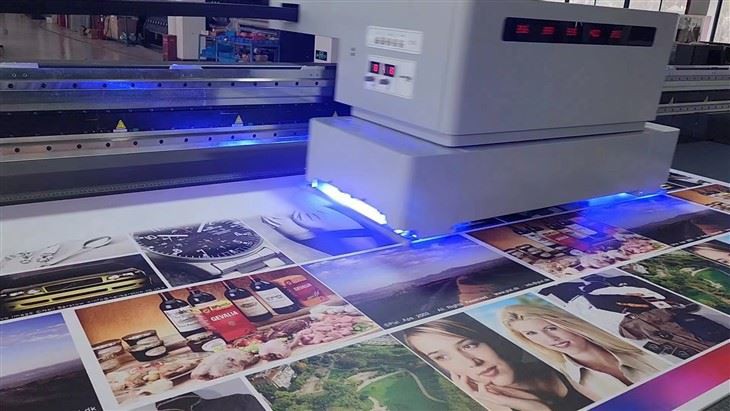
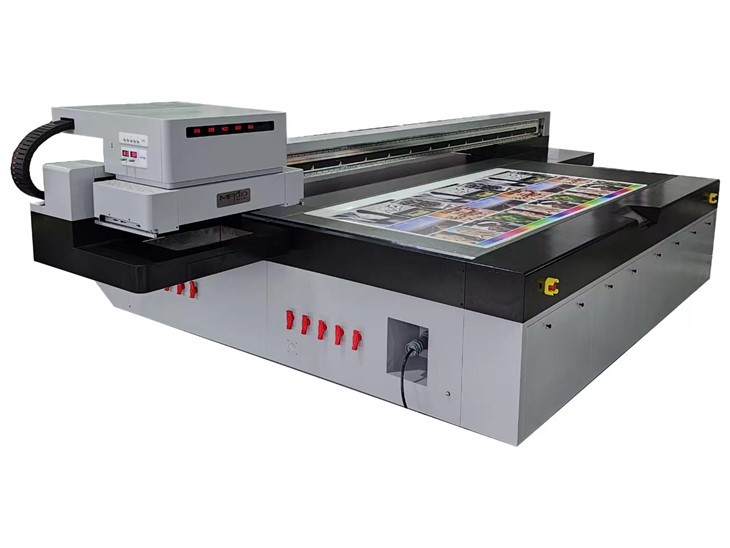
As a supplier, we offer a range of UV Flatbed Printers to meet different needs. If you're looking for a more energy - efficient option, check out our UV LED Flatbed Printer. For those who need to print on large - format materials, our Wide Format Flatbed Printer is a great choice. And if you're after a versatile and high - precision printer, take a look at our Flatbed Digital Printer.
Conclusion
Cleaning the print head of a UV Flatbed Printer is a task that requires a bit of time and patience, but it's well worth the effort. By following the steps outlined above and performing regular maintenance, you can ensure that your printer continues to produce high - quality prints for years to come.
If you have any questions about cleaning your print head or are interested in purchasing a new UV Flatbed Printer, don't hesitate to get in touch with us. We're here to help you make the most of your printing experience.
References
- Printer user manuals provided by the manufacturer
- Industry best practices for UV Flatbed Printer maintenance