

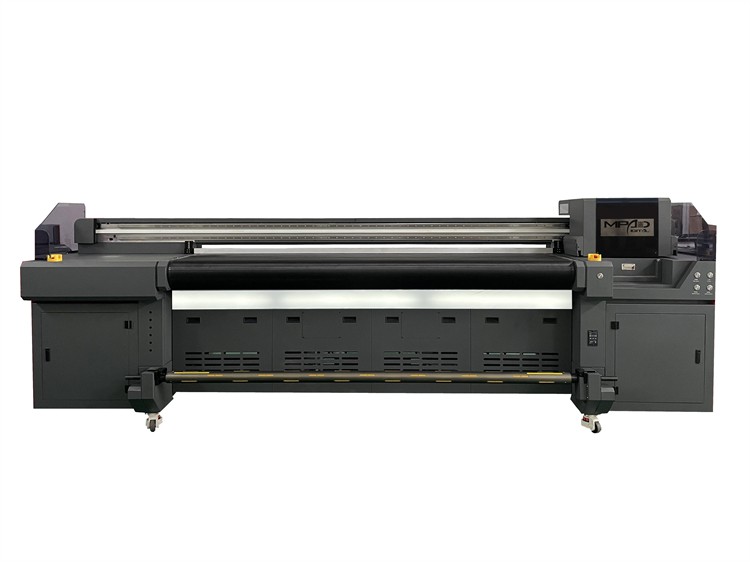
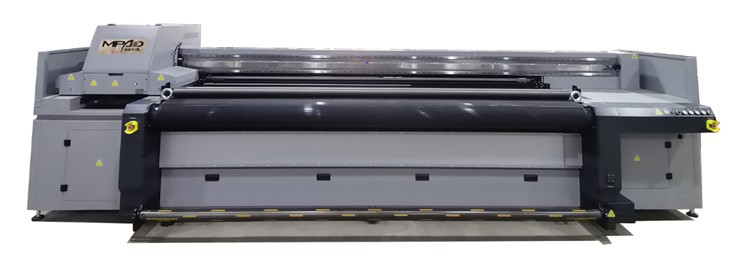
When operating a UV Hybrid Printer, encountering issues where it fails to print properly can be a frustrating experience. As a trusted supplier of UV Hybrid Printer, we understand the importance of getting your printer back up and running efficiently. In this blog post, we will guide you through a comprehensive troubleshooting process to address common problems and ensure optimal performance.
1. Check the Power Supply
The first step in troubleshooting any printer issue is to ensure that it is receiving proper power. A loose power cable or a tripped circuit breaker can cause the printer to malfunction.
- Inspect the Power Cord: Examine the power cord for any signs of damage, such as fraying or cuts. If you find any issues, replace the cord immediately. Make sure the cord is securely plugged into both the printer and the power outlet.
- Verify the Power Outlet: Test the power outlet by plugging in another device. If the other device does not work, the outlet may be faulty. Try plugging the printer into a different outlet or reset the circuit breaker.
2. Examine the Ink Supply
Inadequate ink supply is a common cause of printing problems. If the printer is not getting enough ink, it may produce faded or streaky prints.
- Check the Ink Levels: Most UV Hybrid Printers have an ink level indicator. Check the indicator to see if the ink cartridges are low or empty. If necessary, replace the cartridges with new ones.
- Inspect the Ink Lines: Look for any blockages or kinks in the ink lines. A blocked ink line can prevent ink from flowing properly to the print head. If you find a blockage, try gently massaging the line to clear it. If the problem persists, you may need to replace the ink line.
- Prime the Print Head: Some printers require priming to ensure that the ink flows correctly through the print head. Refer to the printer's user manual for instructions on how to prime the print head.
3. Clean the Print Head
Over time, the print head can become clogged with dried ink or debris, which can affect print quality. Cleaning the print head can often resolve this issue.
- Use the Printer's Cleaning Function: Most UV Hybrid Printers have a built-in cleaning function. Run the cleaning cycle according to the manufacturer's instructions. This will help to remove any blockages in the print head.
- Perform a Manual Cleaning: If the automatic cleaning function does not work, you may need to perform a manual cleaning. This involves removing the print head and soaking it in a cleaning solution. Be sure to follow the manufacturer's instructions carefully when performing a manual cleaning.
4. Check the Print Settings
Incorrect print settings can also cause printing problems. Make sure that the print settings are configured correctly for the type of media you are using.
- Select the Right Media Type: Different types of media require different print settings. Make sure that you have selected the correct media type in the printer's settings. This will ensure that the printer applies the appropriate amount of ink and pressure to the media.
- Adjust the Print Quality: If the prints are coming out too light or too dark, you may need to adjust the print quality settings. Increase the print quality for better results, but keep in mind that this may also increase the printing time.
- Check the Resolution: The resolution of the print can also affect the quality. Higher resolutions generally produce better-quality prints, but they also require more ink and take longer to print. Select the appropriate resolution based on your needs.
5. Inspect the Media
The type and condition of the media can also impact print quality. Make sure that you are using the right type of media for your printer and that it is in good condition.
- Use Compatible Media: Not all media is compatible with UV Hybrid Printers. Make sure that you are using media that is specifically designed for use with your printer. Using incompatible media can cause clogging, smudging, or other printing problems.
- Check the Media for Damage: Inspect the media for any signs of damage, such as scratches, tears, or wrinkles. Damaged media can cause printing issues and may also damage the printer. If you find any damaged media, discard it and use a new sheet.
- Ensure Proper Media Feeding: Make sure that the media is loaded correctly into the printer. Improper media feeding can cause jams or misaligned prints. Follow the manufacturer's instructions for loading the media.
6. Look for Hardware Issues
If you have tried all of the above steps and the printer is still not printing properly, there may be a hardware issue.
- Check for Loose Connections: Inspect all the connections between the printer and the computer, including the USB cable and the power cord. Make sure that they are securely plugged in. Loose connections can cause communication problems between the printer and the computer.
- Examine the Printer's Components: Look for any visible signs of damage or wear on the printer's components, such as the print head, the rollers, or the belt. If you find any damaged components, you may need to replace them.
- Contact Technical Support: If you are unable to identify or resolve the hardware issue, contact our technical support team. Our experts can provide further assistance and may be able to diagnose and fix the problem remotely or on-site.
7. Software and Driver Issues
Sometimes, problems with the printer can be traced back to software or driver issues.
- Update the Printer Drivers: Outdated printer drivers can cause compatibility issues and printing problems. Visit the manufacturer's website to download and install the latest drivers for your printer.
- Check the Printing Software: Make sure that the printing software you are using is compatible with your printer and that it is up-to-date. Try using a different printing software to see if the problem persists.
- Restart the Computer and Printer: Sometimes, simply restarting the computer and the printer can resolve software-related issues. Turn off both the computer and the printer, wait a few seconds, and then turn them back on.
Conclusion
Troubleshooting a UV Hybrid Printer that is not printing properly can be a complex process, but by following the steps outlined in this blog post, you can often identify and resolve the issue. If you are still experiencing problems after trying these steps, do not hesitate to contact us. As a leading supplier of Hybrid Printers, we are committed to providing our customers with the best possible support and solutions. Whether you need help with troubleshooting, maintenance, or purchasing a new printer, our team is here to assist you. Reach out to us today to discuss your requirements and let us help you get the most out of your UV Ink Jet Printer.
References
- Manufacturer's User Manual for UV Hybrid Printer
- Industry Best Practices for UV Printer Maintenance and Troubleshooting