

Hey there! As a supplier of UV Inkjet Printers, I know that sometimes you might run into issues with your printer's printhead. It can be a real pain, but don't worry! In this blog, I'm gonna walk you through the process of replacing the printhead of a UV inkjet printer.
Why You Might Need to Replace the Printhead
First off, let's talk about why you'd even need to replace the printhead. Over time, printheads can get clogged with ink, wear out from constant use, or just plain malfunction. When this happens, you might notice a drop in print quality, like streaks, missing lines, or uneven color. If you've tried cleaning the printhead and it still isn't working right, then it's probably time for a replacement.
What You'll Need
Before you start the replacement process, you'll need to gather a few things:
- A new printhead that's compatible with your UV Inkjet Printer. Make sure to check your printer's manual or contact the manufacturer to find the right one.
- Gloves to protect your hands from ink and chemicals.
- A clean, lint - free cloth to wipe up any spills.
- A small screwdriver or other tools as specified in your printer's manual.
Preparing Your Printer
The first step is to turn off your printer and unplug it from the power source. This is super important to avoid any electrical shocks or damage to the printer. Then, open the printer cover to access the printhead area. You might need to remove some protective panels or covers depending on your printer model.
Next, locate the ink cartridges. Carefully remove them to prevent any ink from spilling during the printhead replacement. Some printers have a locking mechanism for the cartridges, so make sure to follow the instructions in your manual to unlock and remove them safely.
Removing the Old Printhead
Now, it's time to remove the old printhead. Most printheads are held in place by screws or clips. Use your small screwdriver to loosen the screws or release the clips. Be gentle and take your time, as you don't want to damage any other parts of the printer.
Once the printhead is loose, carefully lift it out of the printer. You might notice some ink tubes attached to the printhead. These tubes are how the ink gets from the cartridges to the printhead. Make sure to keep track of which tube goes where, as you'll need to reconnect them later.
Installing the New Printhead
Take your new printhead out of its packaging. Make sure to handle it by the edges and avoid touching the nozzles or the electrical contacts. These parts are very delicate and can easily be damaged.
Line up the new printhead with the slot in the printer where the old one was. Gently lower it into place, making sure it fits snugly. Then, re - attach the ink tubes to the printhead. Double - check that each tube is connected securely to the correct port.
After that, use your screwdriver to tighten the screws or re - engage the clips to hold the printhead in place. Make sure it's firmly attached so that it doesn't move around during printing.
Reassembling Your Printer
Now that the new printhead is installed, it's time to put everything back together. Replace the ink cartridges, making sure they're properly seated and locked in place. Then, close the printer cover and any protective panels you removed earlier.
Initializing the New Printhead
Once you've reassembled the printer, plug it back in and turn it on. Your printer might have a built - in initialization process for new printheads. This process usually involves running some test prints and priming the printhead to get the ink flowing properly.
Follow the on - screen instructions to complete the initialization. It might take a few minutes, but it's an important step to ensure that your new printhead works correctly.
Testing the Printer
After the initialization process is complete, it's time to test the printer. Print a test page to check the print quality. Look for any streaks, missing lines, or color issues. If everything looks good, then congratulations! You've successfully replaced the printhead of your UV Inkjet Printer.
If you notice any problems, don't panic. You might need to run a cleaning cycle or adjust some printer settings. Check your printer's manual for troubleshooting tips.
Tips for Maintaining Your Printhead
To make sure your new printhead lasts as long as possible, here are some tips:
- Use high - quality ink. Cheap or low - quality ink can clog the printhead more easily.
- Keep your printer clean. Regularly wipe down the exterior and the printhead area to prevent dust and debris from getting in.
- Print regularly. If you let your printer sit idle for long periods, the ink in the printhead can dry out and cause clogs.
When to Call in the Professionals
If you're not comfortable replacing the printhead yourself or if you run into any major problems during the process, it's a good idea to call in a professional. Many printer manufacturers offer technical support or have authorized service centers where you can get help.
Contact Us for More Information
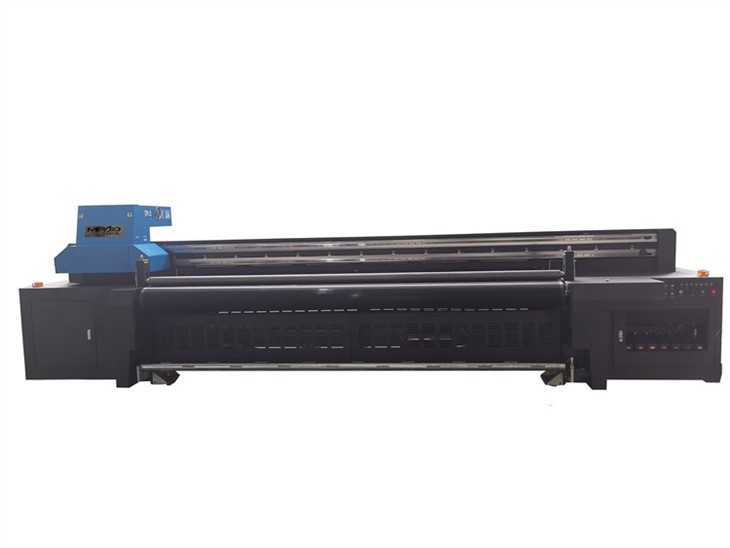
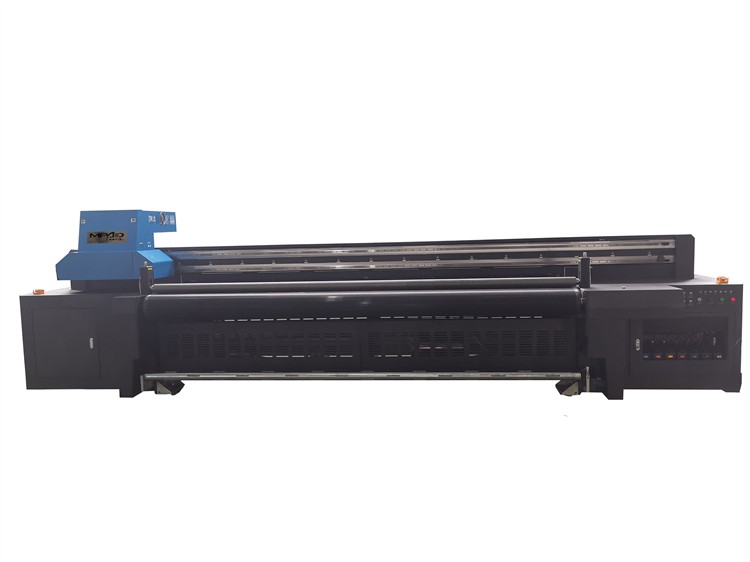
If you're in the market for a new Digital UV Printer or need more printheads for your UV Flatbed Roll To Roll Printer, we're here to help. We offer a wide range of UV inkjet printers and replacement parts at competitive prices.
Whether you're a small business owner looking to expand your printing capabilities or a large - scale printing company in need of reliable equipment, we've got you covered. Just reach out to us, and our team of experts will be happy to assist you with your purchasing decisions and answer any questions you might have.
References
- Printer user manuals provided by the manufacturers.
- Industry knowledge and experience in the UV inkjet printing field.