

As a trusted UV Roll Printer supplier, I understand the importance of keeping your equipment up - to - date with the latest firmware. Firmware upgrades can enhance the performance, reliability, and functionality of your UV Roll Printer. In this blog, I'll guide you through the process of upgrading the firmware of a UV Roll Printer, step by step.
Why Firmware Upgrades Matter
Before diving into the upgrade process, let's first understand why firmware upgrades are crucial. Firmware is the software that runs on your printer's hardware. Over time, manufacturers release new versions of firmware to address bugs, improve print quality, add new features, and enhance compatibility with different media and inks.
For example, a new firmware version might optimize the print head movement, resulting in smoother and more precise prints. It could also introduce support for new types of banners or other printable materials, expanding the range of applications for your UV Roll To Roll Printing Machine. By regularly upgrading the firmware, you can ensure that your printer operates at its best and stays competitive in the market.
Pre - upgrade Preparations
1. Check Compatibility
The first step is to ensure that the new firmware is compatible with your specific model of UV Roll Printer. Different printer models may have different firmware requirements. Visit our official website or contact our customer support team to obtain the correct firmware version for your printer.
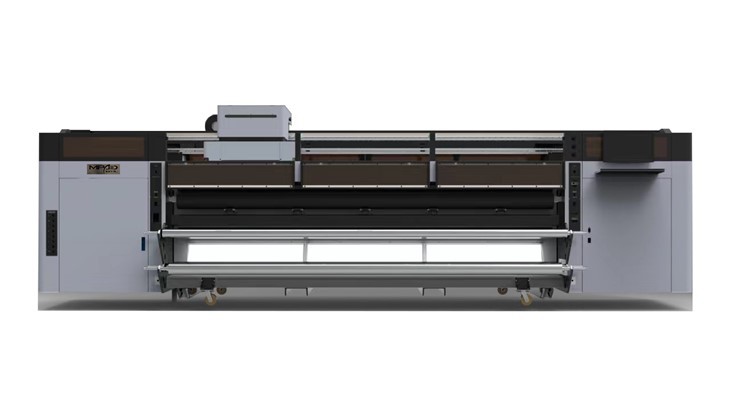
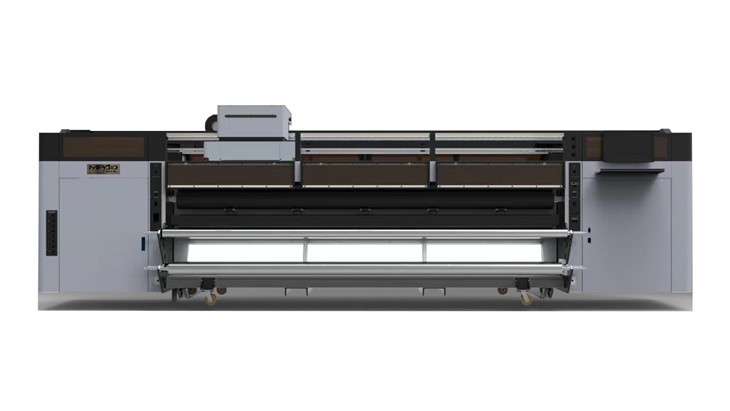
2. Backup Data
It's always a good idea to back up any important data stored on your printer, such as print profiles, custom settings, and saved designs. This will prevent data loss in case something goes wrong during the upgrade process. You can usually back up this data to an external storage device, such as a USB flash drive.
3. Gather Necessary Tools
You'll need a few tools to perform the firmware upgrade. These typically include a USB flash drive with sufficient storage space (usually at least 1GB) and a computer with an internet connection to download the firmware. Make sure the USB flash drive is formatted to a compatible file system, such as FAT32.
4. Read the Manual
Thoroughly read the firmware upgrade manual provided by the manufacturer. The manual contains detailed instructions specific to your printer model and the firmware version you're installing. It will also highlight any potential risks or special considerations during the upgrade process.
Downloading the Firmware
Once you've completed the pre - upgrade preparations, it's time to download the firmware.
1. Locate the Download Page
Go to our official website and navigate to the support section. Find the page dedicated to firmware downloads for UV Roll Printers. Here, you'll find a list of available firmware versions for different printer models.
2. Select the Correct Version
Based on the model number and serial number of your printer, select the appropriate firmware version. Make sure to double - check the version compatibility to avoid any issues.
3. Start the Download
Click on the download link for the selected firmware. The download may take some time depending on your internet speed. Once the download is complete, save the firmware file to your computer.
4. Transfer the Firmware to the USB Flash Drive
Copy the downloaded firmware file from your computer to the USB flash drive. Make sure the file is copied correctly and that there are no errors during the transfer.
Performing the Firmware Upgrade
1. Power Off the Printer
Before inserting the USB flash drive, turn off your UV Roll Printer. This will prevent any electrical interference or data corruption during the upgrade process.
2. Insert the USB Flash Drive
Locate the USB port on your printer and insert the USB flash drive containing the firmware file. Make sure it is inserted securely.
3. Power On the Printer
Turn on the printer and wait for it to boot up. The printer will automatically detect the USB flash drive and display a prompt asking if you want to perform a firmware upgrade.
4. Confirm the Upgrade
Follow the on - screen instructions to confirm the firmware upgrade. Read the warning messages carefully, as they may contain important information about the upgrade process. Once you've confirmed, the printer will start the upgrade.
5. Wait for the Upgrade to Complete
The upgrade process may take several minutes to an hour, depending on the size of the firmware file and the complexity of the upgrade. Do not turn off the printer or remove the USB flash drive during this time. The printer will display a progress bar or status messages to keep you informed of the upgrade progress.
6. Remove the USB Flash Drive
Once the upgrade is complete, the printer will display a message indicating that the upgrade was successful. Turn off the printer again and remove the USB flash drive.
Post - upgrade Checks
1. Power On the Printer
Turn on the printer and let it boot up normally. Check if the printer starts without any error messages.
2. Test the Printer
Perform a test print to ensure that the printer is working correctly. Check the print quality, color accuracy, and speed. If you notice any issues, such as streaks, color variations, or slow printing, refer to the troubleshooting section of the manual or contact our customer support team.
3. Update Settings
Some firmware upgrades may require you to update your printer settings. For example, you may need to adjust the print head height, ink flow rate, or media type settings. Refer to the upgrade manual or contact our support team for guidance on updating these settings.
Troubleshooting Common Issues
1. Upgrade Failure
If the firmware upgrade fails, first check the USB flash drive for any errors. Try copying the firmware file to a different USB flash drive and repeat the upgrade process. If the problem persists, contact our customer support team for further assistance.
2. Printer Not Detecting the USB Flash Drive
Make sure the USB flash drive is inserted correctly and that it is compatible with your printer. Try using a different USB port on the printer or a different USB flash drive.
3. Print Quality Issues
If you experience print quality issues after the upgrade, check if the printer settings have been reset. You may need to recalibrate the print head or adjust the ink settings. Refer to the troubleshooting section of the manual for specific instructions.
Conclusion
Upgrading the firmware of your UV Roll Printer is a relatively straightforward process that can significantly improve the performance and functionality of your printer. By following the steps outlined in this blog, you can ensure a successful firmware upgrade.
At our company, we are committed to providing high - quality UV Roll To Roll Printer High Speed and Banner Printing Machine along with excellent after - sales support. If you have any questions about firmware upgrades or need assistance with your printer, please don't hesitate to contact us. We are here to help you make the most of your printing equipment. Whether you're a small - scale business or a large - scale printing enterprise, our printers and support services can meet your needs. Reach out to us today to discuss your printing requirements and explore how our products can enhance your business.
References
- Manufacturer's firmware upgrade manual for UV Roll Printers
- Technical support documentation provided by the printer manufacturer